Each document will remember its own settings. This is so you can use individual settings for different question papers. When you open a new document, these settings are set to the default settings.
To view these settings choose Document Settings from the Question menu. The settings that these document settings are based on are shown in the Base Settings popup. You can restore the document’s settings to the original settings by choosing the name of the settings from this popup.
If you want to edit the base settings click Edit Settings. This will open the General Settings Window.
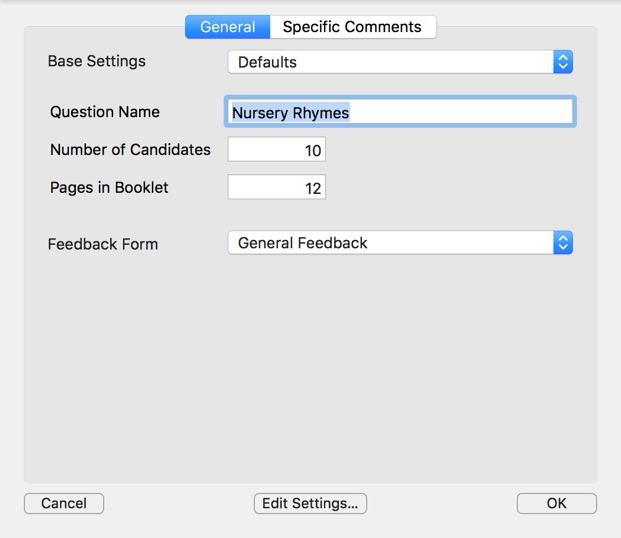
The Question Name is the name shown in the feedback sheets.
Setting the Number of Candidates allows the program to give you feedback on your progress in marking the answer books.
If you are marking from a PDF file with a set number of pages in the question book you can enter this number of pages into the Pages in Booklet field. If you do this, the Candidate Editor window can automatically skip to the next candidate’s answer when you press Command ↓.
The Feedback Form popup allows you to choose a feedback form to print feedback on.
Specific Comments
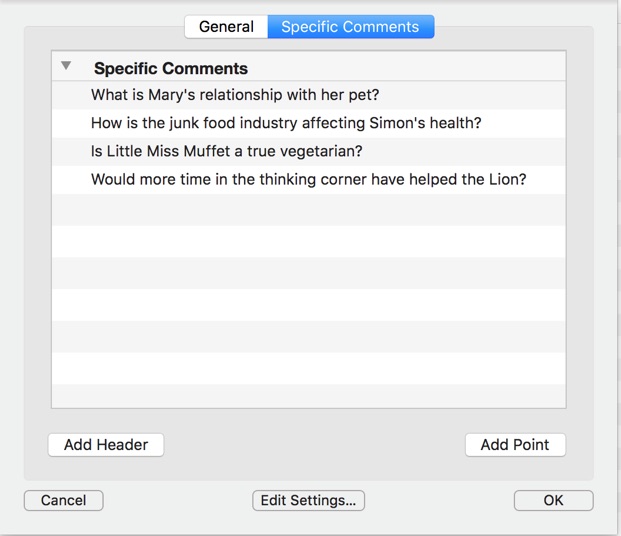
To make a new header, click Add Header. To make a new point, click Add Point. Points can be made subpoints of a header or another point by pressing Command →.